How to Use LinkedIn to Drive Professional Traffic to Your Link-in-Bio

When someone tells you to "build your brand on social media," your mind probably goes straight to Instagram, TikTok, or YouTube. Makes sense — that's where the flashy stuff lives. But if you're a consultant, freelancer, coach, B2B founder, or any kind of professional selling a service, there's a platform sitting right in front of you that most creators completely ignore.
LinkedIn has over a billion members. More importantly, the people on LinkedIn are already in buying mode. They're looking for solutions, partners, hires, and tools. They're not doom-scrolling — they're networking. And yet, most professionals haven't thought about connecting their LinkedIn presence to a proper link-in-bio page.
That's a massive missed opportunity. Here's how to fix it.
Why LinkedIn Traffic Is Different (And Why It Matters)
Before we get into tactics, it's worth understanding what makes LinkedIn traffic uniquely valuable.
On Instagram, someone taps your profile because they liked your Reel. On TikTok, they might follow you because you made them laugh. That's fine — but the intent is entertainment. LinkedIn is different. When someone clicks through from LinkedIn, they're typically:
- Evaluating you professionally — deciding whether to hire you, partner with you, or buy from you
- Already in a business mindset — they logged in to solve a problem, not to kill time
- Higher purchasing power — LinkedIn's audience skews toward decision-makers, managers, and business owners
This means the traffic LinkedIn sends to your Liinks page is warmer and more qualified than what you get from most other platforms. A hundred LinkedIn visitors can easily outperform a thousand from a casual social feed.
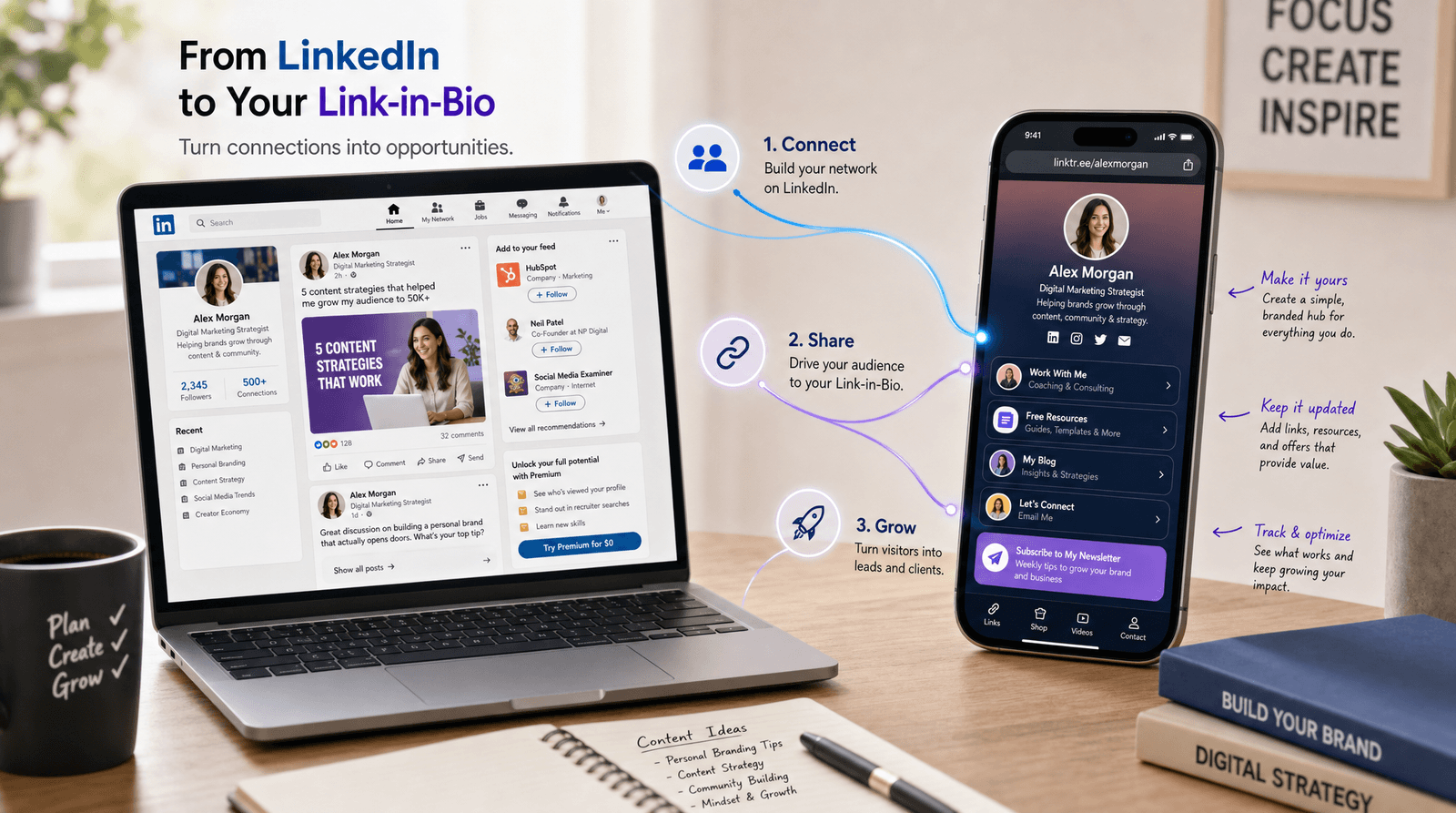
The challenge? LinkedIn only gives you one clickable link in your profile. Sound familiar? That's exactly the problem a link-in-bio solves.
Step 1: Set Up Your LinkedIn Profile Link
LinkedIn gives you a few places to put links. Here's how to maximize each one.
The Website Field
Go to your LinkedIn profile, click Edit, and scroll to the Contact info section. You'll find a Website field — this is prime real estate. Add your Liinks URL here. LinkedIn displays this link on your profile and it's one of the first things visitors see when they click through to your full contact information.
The Featured Section
This is the most underused feature on LinkedIn. The Featured section sits right below your "About" section and lets you pin links, posts, articles, and documents. Pin your Liinks URL here with a compelling headline like "Everything I'm Working On" or "Book a Call / See My Work."
The Featured section is visual — it shows a link preview card. Make sure your Liinks page has a strong Open Graph image so the preview looks professional and clickable.
Your Headline and About Section
You can't hyperlink text in your headline, but you can mention your Liinks URL in your About section. Something like: "See all my resources, book a call, or grab my free guide → liinks.co/yourname." People do read the About section, especially when they're deciding whether to reach out.
Step 2: Structure Your Link-in-Bio Page for a Professional Audience
Here's where most people go wrong. They send LinkedIn traffic to the same link-in-bio page they use for Instagram — a page designed for casual followers, not professional contacts. LinkedIn visitors have different expectations and different needs.
Lead With Credibility
Your first few links should establish trust. Think:
- A portfolio or case study — "See My Recent Work" or "Client Results"
- A booking link — "Schedule a Free Consultation" or "Book a Discovery Call"
- Social proof — a link to a testimonial page, press mentions, or a notable project
Don't bury these under your latest Instagram post or a playlist link. Button order matters — put the highest-value actions for this audience at the top.
Use Sections to Organize
If your Liinks page serves multiple audiences, use sections to create clear visual groupings. You might have:
- For Clients — booking link, services overview, testimonials
- For Partners — media kit, speaking topics, collaboration inquiry form
- For Everyone — newsletter signup, latest content, social profiles
This way, a LinkedIn visitor immediately sees a section that speaks to them, rather than scrolling past irrelevant links meant for a different audience.
Add a Digital Business Card
If you're using LinkedIn for networking — and you should be — consider adding a digital business card to your link-in-bio page. When someone from LinkedIn visits your page, they can save your contact info directly to their phone. It's a small touch that signals professionalism and makes follow-up effortless.
Step 3: Create LinkedIn Content That Drives Clicks
Having your link in the right places is step one. The real game is creating content that makes people want to click.
The LinkedIn Content Formula That Works
LinkedIn's algorithm in 2026 rewards content that generates meaningful engagement — comments, saves, and shares. Here are the post formats that consistently drive traffic to external links:
1. The "Here's What I Learned" Post Share a specific lesson from your work. End with a soft CTA: "I put together a full guide on this — link in my Featured section." This works because it delivers value first and positions the link as a bonus.
2. The Carousel Breakdown LinkedIn carousels (PDF documents uploaded as posts) get strong reach. Create a 6-10 slide breakdown of a framework, process, or case study. The last slide should include a CTA pointing to your link-in-bio.
3. The Comment-Driven Post Ask a question or make a bold statement that invites replies. When people comment, your post gets pushed to their network's feeds. More visibility means more profile visits, which means more link-in-bio clicks.
4. The Long-Form Article LinkedIn Articles are indexed by Google and live permanently on your profile. Write one solid article per month and include your Liinks URL within the body and at the end. These compound over time and drive steady search traffic.
The CTA Rules for LinkedIn
LinkedIn culture is more direct than Instagram or TikTok. You don't need to be coy about asking people to click. But there are norms:
- Don't put links in the post body — LinkedIn's algorithm suppresses posts with external links. Instead, say "Link in my Featured section" or "Link in comments" and drop it there.
- Use the first comment strategically — Post your Liinks URL as the first comment immediately after publishing. Many LinkedIn creators do this, and it works.
- Be specific about what they'll find — "Check out my link-in-bio" is vague. "Grab my free pricing template — link in comments" gives people a reason to click.
Step 4: Turn LinkedIn Connections Into Repeat Visitors
Getting someone to click your link once is good. Getting them to come back — or take a meaningful action — is better.
Keep Your Page Fresh
LinkedIn professionals will check your page multiple times if you give them a reason. Update your Liinks page regularly with:
- New case studies or portfolio pieces
- Upcoming events, webinars, or speaking engagements
- Seasonal offers or limited-time consultations
- Fresh free resources (templates, guides, checklists)
When your page changes regularly, it stops being a static business card and becomes a living resource people bookmark.
Use Analytics to Double Down on What Works
Pay attention to which links get the most clicks from your Liinks dashboard. If your "Book a Call" button is getting twice as many clicks as your portfolio link, that tells you something about what LinkedIn visitors actually want. Lean into it — adjust your page layout, your CTAs, and even your LinkedIn content to match what the data says.
Build Relationships, Not Just Traffic
LinkedIn is fundamentally a relationship-building platform. The people who click through to your link-in-bio aren't anonymous followers — they're often people you've interacted with in comments, DMs, or shared connections. Treat that traffic with the respect it deserves by making your page feel personal, professional, and genuinely useful.
Step 5: Advanced Moves for LinkedIn Power Users
Once you've nailed the basics, here are a few power moves that separate the LinkedIn dabblers from the LinkedIn strategists.
Use UTM Parameters to Track LinkedIn Traffic
Add UTM tags to the links on your Liinks page (or use a dedicated LinkedIn URL) so you can see exactly how much traffic and conversion LinkedIn drives compared to your other channels. If you're using Google Analytics or a similar tool, this data helps you justify spending more time on LinkedIn content.
Cross-Promote With Other Platforms
LinkedIn doesn't have to be an island. Mention your LinkedIn content on other platforms: "I just published a deep-dive on LinkedIn about pricing strategy — link to my profile in bio." This cross-pollination grows your LinkedIn audience and, by extension, your link-in-bio traffic from a higher-intent source.
Engage in Comments on Other People's Posts
This is the most underrated LinkedIn growth strategy. When you leave thoughtful comments on popular posts in your niche, people click through to your profile — and from there, to your link-in-bio. This costs nothing and compounds over time.
TL;DR
LinkedIn is one of the highest-intent traffic sources available to professionals, and almost nobody is connecting it to their link-in-bio page. Here's the playbook:
- Set up your links — Website field, Featured section, and About section should all point to your Liinks page
- Structure your page for professionals — lead with credibility, use sections, add a digital business card
- Create content that drives clicks — lessons learned, carousels, comment-driven posts, and articles
- Use smart CTAs — "link in comments" or "link in Featured," not links in the post body
- Track and iterate — use analytics to see what LinkedIn visitors actually want, then give them more of it
Start Building Your Professional Link-in-Bio
If you're serious about using LinkedIn as a growth channel, you need a link-in-bio page that matches the professionalism your audience expects. Liinks gives you customizable sections, clean design, built-in analytics, and a free digital business card generator — everything you need to turn LinkedIn visitors into clients, partners, and collaborators.
Set up your free page at liinks.co and start funneling that professional traffic somewhere that actually converts.