How to Optimize Your Link-in-Bio for Conferences, Pop-Ups, and Live Events
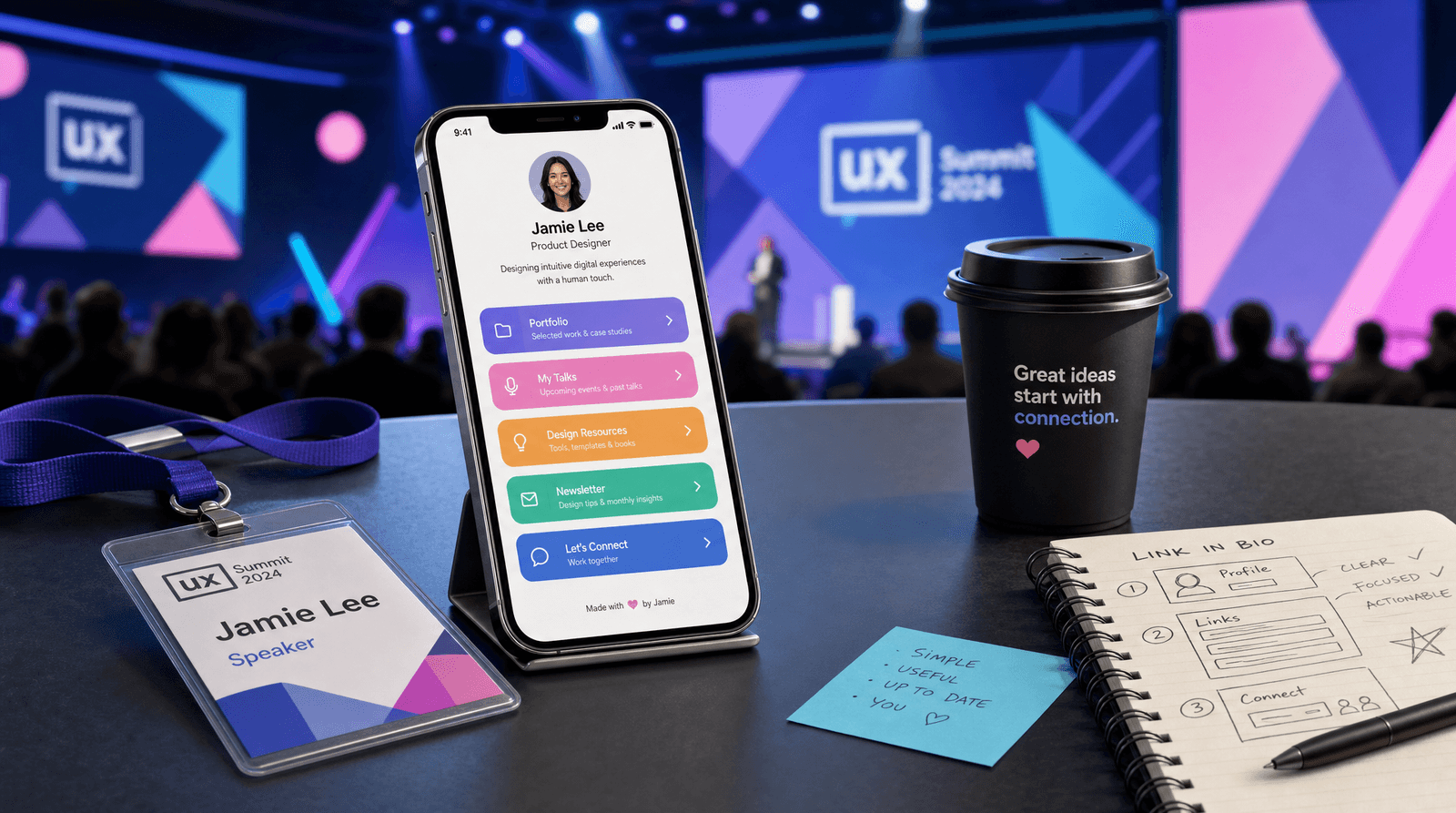
You're standing at a trade show booth, a networking mixer, or the back of a conference hall. Someone says "I love what you do, how do I find you?" You rattle off your Instagram handle. They pull out their phone, tap through to your bio link, and land on... your evergreen page. The one with the three-month-old YouTube video at the top and the holiday sale link you forgot to take down in January.
That page was fine yesterday. It's a liability today.
Live events compress the entire buyer journey into a few seconds. Someone meets you, decides you're interesting, and checks you out on their phone while still in the same room. If your link-in-bio page doesn't reflect what you're doing right now, you've lost the warmest lead you'll get all quarter.
The fix isn't complicated. It takes about fifteen minutes of prep, costs nothing, and turns your Liinks page into a live event command center that captures leads, books meetings, and keeps working long after the event ends.
Why Your Everyday Page Fails at Events
Your regular link-in-bio page is optimized for cold traffic from social media. It has to do everything: introduce you, show your work, link to your content, drive sales. That's the right approach for someone discovering you through a TikTok or an Instagram post.
Event traffic is different. The person already knows who you are. They just met you. They heard your talk, visited your booth, or chatted with you over bad conference coffee. They don't need your full origin story. They need the one thing you talked about, fast, before they get pulled into the next conversation.
The mismatch creates friction. A visitor from a networking event lands on a page with eight buttons, three sections, and a newsletter signup buried at the bottom. They scroll, get overwhelmed, and close the tab. You just lost a warm contact because your page was built for strangers, not for people you've already connected with.
The solution is to temporarily restructure your page for event mode. Strip it down, push the event-relevant links to the top, and make the next step obvious.
Step 1: Build Your Event Link Stack (Before the Event)
The night before the event, open your Liinks dashboard and restructure your buttons. Think of this as "event mode" for your page.
Pin the essentials to the top
Move these buttons to the top of your page, in this order:
- The event-specific action. This is the single most important thing someone should do after meeting you. Book a call, grab a free resource, sign up for a waitlist, view your booth demo. One button, one action.
- Your calendar or booking link. If you're at a conference to book meetings, make the booking link impossible to miss. Calendly, Cal.com, or whatever you use. First or second position.
- A portfolio or work sample. People you meet will want proof. Link to your best case study, a quick portfolio, or a demo reel.
- Your contact info or digital business card. Let people save your details instantly. If you haven't set one up yet, the Liinks Digital Business Card Generator builds one in under a minute with no sign-up required.
Push everything else below the fold
Don't delete your existing links. Just move them down. Your YouTube channel, your newsletter archive, your affiliate links: they can all stay, just not in the top four positions. Remember, button order matters more than button copy. The top two positions on any link-in-bio page capture the overwhelming majority of clicks.
Keep the total count tight
Events demand focus. You're not building a resource library; you're building a conversion page. Aim for 4-6 buttons total in "event mode." If you need a deeper refresher on the right number, check out how many links you should actually have on your page.
Step 2: Make Your Page Scannable (Literally)
At events, nobody types a URL. They scan a code or tap a link. Make both paths frictionless.
Generate a QR code for your Liinks page
Most link-in-bio tools (including Liinks) let you generate a QR code that points directly to your page. Print it and put it everywhere:
- On your badge or lanyard. Stick a small QR code on a badge insert. When someone asks "how do I find you?" you just flip your badge over.
- On your booth table or banner. Big, visible, and impossible to miss. Anyone walking by can scan without asking.
- On your slide deck. If you're giving a talk, put the QR code on your final slide. Better yet, put it on every slide in the corner so people can scan whenever they're ready.
- On printed materials. Postcards, flyers, or leave-behinds. A QR code replaces the business card entirely. It opens your page, which has your contact info, your portfolio, and your booking link all in one place.
Add a "Save My Contact" button
If you created a digital business card with the free Liinks vCard generator, add that download link as a prominent button on your event page. One tap saves your name, email, phone number, and website straight to their phone's contact list. No paper card to lose.
Step 3: Add Event-Specific Content Sections
Beyond buttons, use sections on your page to tell a focused story for event visitors.
Add an event header or greeting
If your link-in-bio tool supports custom sections or text blocks, add a short line at the top: something like "Thanks for connecting at [Event Name]! Here's everything we talked about." This confirms to the visitor that they're in the right place and creates a personal touch that cold traffic pages never have.
Create a "What I Do" snapshot
Event visitors often meet dozens of people in a single day. By the time they check your page that evening at the hotel, they might not remember exactly what you do. A two-sentence description at the top of your page (or in your bio text) solves this: "I help SaaS founders build customer education programs. Here's a free checklist to get started."
Link to the specific thing you discussed
If you're at a conference and keep recommending the same resource, article, or product, make sure it's the first button on your page. Don't send people on a treasure hunt through your general links. Surface the thing that's relevant today.
Step 4: During the Event: Use Your Page as a Follow-Up Tool
Once the event starts, your link-in-bio page becomes your primary follow-up mechanism. Here's how to use it actively.
Share your page link in every conversation
When someone asks how to reach you, don't say "find me on Instagram." Say "I'll text you my link" or "scan this." Then send them your Liinks URL. It's faster, it's direct, and it puts them on a page you control rather than a social feed they'll scroll past.
Drop your link in event group chats
Most conferences have Slack channels, WhatsApp groups, or Discord servers. When you introduce yourself, include your link-in-bio URL. Every person in that group can tap through to your page without having to search for your handle across platforms.
Update your page in real time if needed
Speaking on a panel and just announced a new offer? Update your top button before you walk off stage. Your Liinks dashboard is mobile-friendly, so you can swap a link from your phone in under a minute. The people scanning your QR code during your talk will land on an already-updated page.
Step 5: After the Event: Measure, Follow Up, and Reset
The event is over. You're back at your desk with a stack of business cards and a head full of conversations. Your link-in-bio page is still working for you.
Check your analytics
Open your Liinks analytics and look at the traffic spike during the event. Which buttons got the most clicks? Did more people tap "Book a Call" or "Download My Free Guide"? This data tells you what event visitors actually cared about, which shapes how you follow up and how you structure your page for the next event.
Send follow-up messages with your link
Instead of manually emailing each new contact with three different links, send one message: "Great meeting you at [Event]. Here's my page with everything we discussed: [your Liinks URL]." It's clean, it's professional, and it tracks which links they click.
Decide whether to keep or revert your event page
Some creators keep their event-optimized page running for a week after the event to catch late follow-ups. Others revert to their regular page within 24 hours. The right answer depends on your traffic patterns. If you're still seeing event-related clicks three days later, keep the event layout. If traffic has normalized, switch back.
Save your event layout for next time
Before reverting, take a screenshot of your event page layout. Note which buttons you used, what order they were in, and which ones performed best. Next time you attend an event, you won't start from scratch. You'll have a tested template.
TL;DR
- Before the event: restructure your link-in-bio with event-specific buttons at the top. Keep it focused: 4-6 links maximum.
- Print QR codes for your badge, booth, slides, and leave-behind materials that link directly to your page.
- Add a vCard download button so contacts can save your info instantly.
- During the event: share your link in conversations, group chats, and on stage. Update in real time if needed.
- After the event: check analytics, send follow-up messages with your page link, and save your layout for next time.
Make Your Next Event Count
Conferences, trade shows, and pop-ups are expensive. The booth fees, the travel, the time away from your desk. The least expensive part of the whole thing is updating your link-in-bio page, and it might be the highest-leverage move you make all week. Set up a free Liinks page, restructure it for event mode, print a QR code, and let your page do the networking follow-up for you.